🌡️ Introduction
Laptop overheating is a common problem that can affect performance and cause unexpected shutdowns. Dust, blocked air vents, and heavy applications can increase your laptop’s temperature. Fortunately, a few simple steps can help keep your laptop cool and running smoothly.
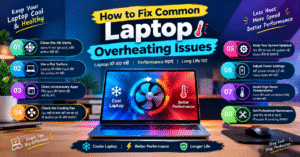
🧹 1. Clean the Air Vents
Dust can block airflow and trap heat inside your laptop. Keep the air vents clean and use appropriate cleaning methods to prevent dust buildup.
🌬️ 2. Use Your Laptop on a Flat Surface
Place your laptop on a hard, flat surface to allow proper airflow. Avoid using it on beds, blankets, or pillows that can block the ventilation openings.
⚙️ 3. Close Unnecessary Applications
Running multiple demanding applications can increase CPU usage and heat. Close programs you are not using to reduce the workload on your laptop.
🌀 4. Check the Cooling Fan
If your laptop fan makes unusual noises or does not seem to work, the cooling system may need attention. Have the fan inspected by a qualified technician if necessary.
🔄 5. Keep Your System Updated
Install relevant operating system and driver updates. Updates can improve stability and help resolve certain performance-related issues.
🔋 6. Adjust Power Settings
Choose a suitable power mode for your workload. Reducing demanding tasks when possible can help lower heat generation, especially on laptops with limited cooling capacity.
🌡️ 7. Avoid High Room Temperatures
Use your laptop in a well-ventilated, cool environment. High ambient temperatures can make it harder for the cooling system to remove heat.
🛠️ 8. Get Professional Maintenance
If your laptop continues overheating despite proper ventilation, its fan, heatsink, or thermal interface may need inspection. Seek professional service rather than opening the device if you are unfamiliar with laptop repairs.
✅ Conclusion
You can reduce laptop overheating by cleaning the vents, improving airflow, closing demanding applications, and keeping your system updated. If overheating continues or your laptop shuts down unexpectedly, get the cooling system checked to prevent further problems.
How to Fix Common Laptop Overheating Issues
🌡️ Introduction
अगर आपका laptop बार-बार गर्म हो रहा है, तो इसकी वजह dust, खराब ventilation या ज्यादा applications चलना हो सकता है। Overheating से laptop की performance कम हो सकती है और कभी-कभी अचानक shutdown भी हो सकता है। कुछ आसान tips अपनाकर आप अपने laptop को ठंडा और बेहतर condition में रख सकते हैं।
🧹 1. Clean the Air Vents
Laptop के air vents में dust जमा होने से हवा का flow रुक सकता है। इसलिए vents को समय-समय पर साफ रखें, ताकि गर्म हवा आसानी से बाहर निकल सके।
🌬️ 2. Use Your Laptop on a Flat Surface
Laptop को हमेशा hard और flat surface पर रखें। Bed, pillow या blanket पर laptop इस्तेमाल करने से ventilation block हो सकता है और overheating बढ़ सकती है।
⚙️ 3. Close Unnecessary Applications
एक साथ कई heavy applications चलाने से CPU पर ज्यादा load पड़ता है। जिन applications का इस्तेमाल नहीं कर रहे हैं, उन्हें बंद कर दें, ताकि laptop का workload कम हो सके।
🌀 4. Check the Cooling Fan
Laptop का cooling fan अंदर की गर्म हवा बाहर निकालने में मदद करता है। अगर fan से अजीब आवाज आ रही है या वह सही तरीके से काम नहीं कर रहा, तो technician से उसकी जाँच करवाएँ।
🔄 5. Keep Your System Updated
अपने operating system और जरूरी drivers को updated रखें। Updates से system stability और compatibility बेहतर हो सकती है, जिससे कुछ performance issues ठीक हो सकते हैं।
🔋 6. Adjust Power Settings
अगर laptop ज्यादा गर्म हो रहा है, तो power settings में suitable mode चुनें। जरूरत से ज्यादा heavy tasks कम करने से CPU पर load और heat generation कम हो सकती है।
🌡️ 7. Use Your Laptop in a Cool Environment
Laptop को ज्यादा गर्म कमरे में इस्तेमाल करने से बचें। अच्छी ventilation वाली जगह पर काम करें, ताकि cooling system laptop की heat को बेहतर तरीके से बाहर निकाल सके।
🛠️ 8. Get Professional Maintenance
अगर आपका laptop साफ करने और ventilation सुधारने के बाद भी गर्म हो रहा है, तो cooling fan, heatsink या thermal paste की जाँच करवाएँ। जरूरत पड़ने पर qualified technician से servicing करवाएँ।
✅ Conclusion
Laptop overheating की समस्या कम करने के लिए air vents साफ रखें, unnecessary applications बंद करें और laptop को सही surface पर इस्तेमाल करें। अगर laptop बार-बार गर्म होकर shutdown हो रहा है, तो उसे नजरअंदाज न करें और professional help लें।