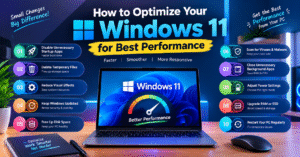
How to Optimize Windows 11 for Best Performance
⚡ Introduction
Is your Windows 11 PC running slowly? You can improve its speed and performance with a few simple changes. Optimizing Windows 11 helps your computer run more smoothly, start faster, and handle everyday tasks more efficiently.
🚀 1. Disable Unnecessary Startup Apps
Some applications launch automatically when you turn on your PC. Open Task Manager and disable unnecessary startup apps to help Windows start faster.
🗑️ 2. Delete Temporary Files
Temporary files can take up valuable storage space. Go to Settings → System → Storage → Temporary files and remove files you no longer need.
⚙️ 3. Reduce Visual Effects
Animations and visual effects may use system resources. Adjust Windows visual effects settings to prioritize performance, especially on older computers.
🔄 4. Keep Windows Updated
Install available Windows updates to improve system security, stability, and compatibility. Check for updates regularly through Windows Update.
💾 5. Free Up Disk Space
Remove unused applications and unnecessary files to create more storage space. Keeping your system drive from becoming nearly full can help maintain smooth performance.
🛡️ 6. Scan for Viruses and Malware
Malware can consume system resources and affect your PC’s performance. Use Windows Security to scan your computer and address potential threats.
🔌 7. Close Unnecessary Background Apps
Running multiple applications simultaneously can consume RAM and CPU resources. Close programs you are not using to help your computer run more efficiently.
🔋 8. Adjust Power Settings
Choose a suitable power mode under Settings → System → Power & battery. Best performance mode may improve responsiveness but can use more power and generate additional heat.
💿 9. Upgrade RAM or SSD
If your PC remains slow, consider adding RAM or replacing an older hard drive with an SSD. Check hardware compatibility before upgrading.
🔄 10. Restart Your PC Regularly
Restarting your computer can resolve temporary issues and refresh system processes. A regular restart may help when your PC becomes sluggish after extended use.
✅ Conclusion
Optimizing Windows 11 does not require complicated technical skills. Disable unnecessary startup apps, clean up storage, install updates, and manage background applications. These simple steps can improve responsiveness and help your PC perform more efficiently.
⚡ Introduction
Is your Windows 11 PC running slowly? कुछ simple settings और maintenance tips की मदद से आप अपने computer की speed, performance और responsiveness बेहतर कर सकते हैं। आइए जानते हैं Windows 11 को optimize करने के आसान तरीके।
🚀 1. Disable Unnecessary Startup Apps
कई apps computer चालू होते ही automatically start हो जाती हैं। Task Manager में जाकर unnecessary startup apps को disable करें, ताकि Windows जल्दी start हो सके।
🗑️ 2. Remove Temporary Files
Temporary files आपके storage में जगह ले सकती हैं। Settings में जाकर System → Storage → Temporary files खोलें और उन files को हटाएँ जिनकी आपको जरूरत नहीं है।
⚙️ 3. Adjust Visual Effects
Animations और visual effects कुछ computers पर performance को प्रभावित कर सकते हैं। Windows की visual effects settings में जाकर unnecessary effects कम करें।
🔄 4. Keep Windows Updated
Windows 11 के updates regularly check करें। Updates से security, stability और compatibility बेहतर हो सकती है।
💾 5. Free Up Disk Space
अपने system drive में पर्याप्त free space रखें। Unused applications और unwanted files हटाकर storage को व्यवस्थित रखें।
🛡️ 6. Scan for Viruses and Malware
Malware आपके PC की performance को slow कर सकता है। Windows Security का उपयोग करके regular virus scans चलाएँ और suspicious files से सावधान रहें।
🔌 7. Close Unnecessary Background Apps
एक साथ बहुत सारे applications चलाने से RAM और CPU पर load बढ़ सकता है। जिन programs का इस्तेमाल नहीं कर रहे हैं, उन्हें बंद कर दें।
🎮 8. Choose the Right Power Mode
अगर आप laptop इस्तेमाल करते हैं, तो Settings में System → Power & battery खोलकर जरूरत के अनुसार power mode चुनें। Best performance mode ज्यादा power इस्तेमाल कर सकता है।
💿 9. Upgrade RAM or SSD
अगर आपका PC अभी भी slow है, तो RAM बढ़ाने या HDD की जगह SSD लगाने पर विचार करें। Upgrade से पहले अपने device की compatibility जरूर check करें।
🧹 10. Restart Your PC Regularly
Computer को समय-समय पर restart करें। इससे कुछ temporary issues दूर हो सकती हैं और system को fresh start मिलता है।
✅ Conclusion
Windows 11 को बेहतर performance देने के लिए startup apps कम करें, storage साफ रखें और system updates install करें। इन आसान steps से आपका PC ज्यादा responsive हो सकता है और रोजमर्रा के काम आसानी से कर सकता है।