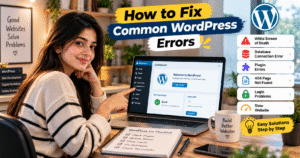
How to Fix Common WordPress Errors
WordPress is a popular platform for creating blogs, business websites, and online stores. However, sometimes users face problems such as the White Screen of Death, database connection errors, plugin conflicts, or the 404 Page Not Found error. These issues can affect your website’s performance and user experience, but many of them can be fixed with a few troubleshooting steps.
🛠️ 1. Fix the WordPress White Screen of Death
The White Screen of Death occurs when your website displays a blank page instead of its normal content. It may be caused by a faulty plugin, incompatible theme, or PHP error.
How to fix it:
- Disable recently installed plugins.
- Switch to a default WordPress theme.
- Check your PHP error logs.
- Increase the PHP memory limit if necessary.
🔌 2. Fix Plugin and Theme Conflicts
Sometimes, a plugin or theme update can cause website errors or break certain features.
How to fix it:
- Deactivate plugins one by one to identify the problematic plugin.
- Update WordPress, themes, and plugins.
- Switch temporarily to a default theme.
- Reinstall the faulty plugin from a trusted source if necessary.
Always create a backup before making major changes.
🗄️ 3. Fix the Error Establishing a Database Connection
This error appears when WordPress cannot connect to its database. Common causes include incorrect database credentials, database server problems, or database corruption.
How to fix it:
- Check the database name, username, password, and hostname in
wp-config.php. - Confirm that your hosting provider’s database server is running.
- Check database permissions.
- Contact your hosting provider if the problem continues.
Avoid changing database credentials without confirming the correct details with your hosting provider.
🔗 4. Fix the 404 Page Not Found Error
A 404 error occurs when a requested page cannot be found. It can happen because of incorrect URLs, deleted pages, or permalink configuration problems.
How to fix it:
- Open your WordPress dashboard.
- Go to Settings → Permalinks.
- Click Save Changes without making unnecessary changes.
- Check whether the page URL is correct.
- Review redirects if the problem continues.
🔐 5. Fix WordPress Login Problems
If you cannot log in to your WordPress dashboard, the cause may be an incorrect password, browser cache, a plugin conflict, or a security restriction.
How to fix it:
- Use the Lost your password option.
- Clear your browser cache and cookies.
- Temporarily disable problematic plugins if you have authorized access to the website files.
- Contact your hosting provider if login remains unavailable.
⚡ 6. Fix a Slow WordPress Website
A slow website can frustrate visitors and affect user experience. Common causes include large images, excessive plugins, outdated software, and limited hosting resources.
How to improve performance:
- Compress images before uploading them.
- Remove unnecessary plugins.
- Enable caching through a suitable plugin or hosting feature.
- Update WordPress and supported PHP versions.
- Consider better hosting if server resources are insufficient.
💡 Tips to Prevent Common WordPress Errors
- Back up your website regularly.
- Keep WordPress, themes, and plugins updated.
- Install plugins only from trusted sources.
- Test major updates on a staging website when possible.
- Use strong passwords and enable two-factor authentication.
- Monitor error logs to identify problems early.
✅ Conclusion
Common WordPress errors can often be resolved by checking plugins, themes, database settings, URLs, and server resources. Before making major changes, create a backup and troubleshoot one issue at a time. If an error continues, review the server logs or contact your hosting provider for assistance.
🛠️ How to Fix Common WordPress Errors
WordPress ek popular platform hai, jiski मदद से aap blog, business website aur online store बना सकते हैं। Lekin kabhi-kabhi website चलाते समय kuch errors आ जाते हैं, jinki wajah se website सही तरीके से काम नहीं करती। Jaise website ka blank ho जाना, login nahi होना ya page open karne par 404 error आना। In problems ko kuch आसान steps follow karke fix kiya जा सकता है।
💻 1. WordPress White Screen Error Kaise Fix Karein?
Agar aapki website open karne par sirf white screen दिखाई दे रही है, toh iska कारण faulty plugin, theme conflict ya PHP error ho सकता है।
Is problem ko fix karne ke liye:
- Recently install kiye gaye plugins deactivate karein।
- Default WordPress theme activate karke check karein।
- Hosting panel mein error logs देखें।
- Website ki PHP settings check karein।
🔌 2. WordPress Plugin Error Kaise Fix Karein?
Kabhi-kabhi plugin update karne ke baad website ke features काम करना बंद कर देते हैं। Aisa plugin aur theme ke beech conflict hone ki wajah se ho सकता है।
Solution:
- Plugins ko ek-ek karke deactivate karein।
- Check karein ki kaunsa plugin error पैदा कर रहा है।
- WordPress aur plugins ko updated rakhein।
- Zaroorat padne par default theme use karke dekhein।
Koi bhi change karne se pehle website ka backup ज़रूर बना लें।
🗄️ 3. Database Connection Error Kaise Fix Karein?
Agar WordPress database se connect nahi kar pa raha hai, toh screen par “Error Establishing a Database Connection” दिखाई दे सकता है। Yeh problem galat database details ya server issue ki wajah se aa सकती है।
Fix karne ke steps:
wp-config.phpfile mein database details check karein।- Database server chal raha hai ya nahi, confirm karein।
- Database permissions check karein।
- Problem solve nahi hone par hosting support se संपर्क करें।
🔗 4. WordPress 404 Error Kaise Fix Karein?
Agar website ka koi page open nahi ho raha aur 404 Page Not Found error aa raha hai, toh URL ya permalink settings mein problem ho सकती है।
Isse fix karne ka tarika:
- WordPress Dashboard open karein।
- Settings mein Permalinks par click karein।
- Bina settings badle Save Changes par click karein।
- Page ka URL dobara check karein।
- Problem बनी रहने par redirects aur server configuration check karein।
🔐 5. WordPress Login Problem Kaise Solve Karein?
Agar aap WordPress Dashboard mein login nahi kar pa rahe hain, toh password galat hone, browser cache ya plugin conflict ki wajah se problem aa सकती है।
- Lost your password option se password reset karein।
- Browser ki cache aur cookies clear karein।
- Recently install kiye gaye plugins check karein।
- Zaroorat padne par hosting provider ki help lein।
⚡ 6. WordPress Website Slow Hai Toh Kya Karein?
Agar aapki website dheere load ho rahi hai, toh visitors ko परेशानी हो सकती है। Large images, unnecessary plugins aur slow hosting iski wajah ho sakte hain।
Website fast karne ke tips:
- Images ko compress karke upload karein।
- Unnecessary plugins hata dein।
- Caching enable karein।
- WordPress aur PHP ko supported latest versions par update karein।
- Hosting resources kam hone par better plan choose karein।
💡 WordPress Errors Se Kaise Bachein?
- Website ka regular backup banate rahein।
- Plugins aur themes ko updated rakhein।
- Trusted sources se hi plugins download karein।
- Major updates se pehle testing karein।
- Strong password aur two-factor authentication enable karein।
✅ Conclusion
WordPress errors aana common hai, lekin sahi troubleshooting se inhe fix kiya ja सकता है। Website ka backup banayein, plugins aur themes check karein aur error logs ki madad se problem ka कारण पता करें। Agar error solve nahi hota, toh hosting support ya experienced developer se help lein।