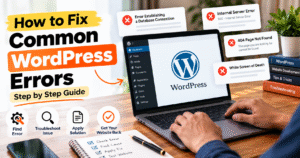
How to Fix Common WordPress Errors
WordPress is one of the most popular platforms for building websites, but sometimes you may face errors while managing your website. Issues like the White Screen of Death, Error Establishing a Database Connection, 404 Page Not Found, or the Internal Server Error can affect your website’s performance and user experience.
🔧 Common WordPress Errors and Their Solutions
1. White Screen of Death
If your WordPress website displays a blank white screen, the issue may be caused by a faulty plugin, theme, or PHP memory limit. Try disabling recently installed plugins and switching to a default theme.
2. Error Establishing a Database Connection
This error usually occurs when WordPress cannot connect to its database. Check your database name, username, password, and host settings in the wp-config.php file.
3. 404 Page Not Found
A 404 error means the requested page cannot be found. Go to Settings → Permalinks in your WordPress dashboard and click Save Changes to refresh your permalink rules.
4. Internal Server Error (500)
This error may be related to corrupted .htaccess rules, plugin conflicts, or server configuration issues. Back up your website, temporarily rename the .htaccess file, and regenerate it through WordPress permalink settings if needed.
5. WordPress Login Issues
If you cannot log in to your WordPress dashboard, check your username and password, clear your browser cache, and use the password reset option if necessary.
🛡️ Tips to Prevent WordPress Errors
- Keep WordPress, plugins, and themes updated.
- Take regular website backups.
- Install plugins only from trusted sources.
- Use reliable hosting with sufficient server resources.
- Test major changes on a staging website whenever possible.
🚀 Conclusion
WordPress errors can be frustrating, but most common issues can be resolved with a few troubleshooting steps. Always back up your website before making technical changes, and check your server error logs if the problem continues. Regular maintenance and careful updates can help keep your WordPress website secure, stable, and running smoothly.
How to Fix Common WordPress Errors
आज के समय में WordPress website बनाना काफी आसान है, लेकिन कभी-कभी website manage करते समय कुछ common errors आ जाते हैं। इन errors की वजह से website open नहीं होती, pages सही से load नहीं होते या admin dashboard में login करने में परेशानी आती है। अगर आप blogger, website developer या business owner हैं, तो इन problems को fix करना जानना बहुत जरूरी है।
इस guide में हम कुछ common WordPress errors और उन्हें ठीक करने के आसान तरीकों के बारे में जानेंगे।
🔧 1. White Screen of Death
अगर आपकी WordPress website open करने पर सिर्फ blank white screen दिखाई दे रही है, तो इसका कारण faulty plugin, theme या PHP memory की कमी हो सकती है।
इसे कैसे ठीक करें?
- हाल ही में install किए गए plugins को disable करें।
- Default WordPress theme activate करके check करें।
- Hosting की PHP error logs देखें।
🔌 2. Error Establishing a Database Connection
यह error तब आता है जब WordPress अपनी database से connect नहीं कर पाता। इसकी वजह गलत database credentials या server की समस्या हो सकती है।
इसे कैसे ठीक करें?
wp-config.phpfile में database name, username और password check करें।- Hosting server की स्थिति check करें।
- समस्या बनी रहने पर hosting support से संपर्क करें।
🔗 3. 404 Page Not Found Error
जब कोई page नहीं खुलता और 404 error दिखाई देता है, तो इसका कारण गलत URL या permalink settings हो सकता है।
इसे कैसे ठीक करें?
- WordPress dashboard में Settings → Permalinks पर जाएँ।
- बिना कोई बदलाव किए Save Changes पर click करें।
- Page का URL सही है या नहीं, यह भी check करें।
⚙️ 4. Internal Server Error (500)
Internal Server Error की वजह से आपकी website का कोई page या पूरी website काम करना बंद कर सकती है। यह plugin conflict, .htaccess file या server configuration की समस्या के कारण हो सकता है।
इसे कैसे ठीक करें?
- Website का backup जरूर लें।
.htaccessfile और server error logs check करें।- Plugins को temporarily disable करके conflict की जाँच करें।
🔑 5. WordPress Login Problem
कभी-कभी सही username और password डालने के बाद भी WordPress dashboard में login नहीं हो पाता।
इसे कैसे ठीक करें?
- Username और password दोबारा check करें।
- Browser cache और cookies clear करें।
- जरूरत पड़ने पर Lost your password? option से password reset करें।
🛡️ WordPress Errors से बचने के आसान Tips
- WordPress, themes और plugins को regularly update रखें।
- Website का regular backup लेते रहें।
- भरोसेमंद sources से ही plugins install करें।
- Strong password और two-factor authentication का इस्तेमाल करें।
- Website में बड़े changes करने से पहले staging environment पर test करें।
🚀 Conclusion
WordPress errors आना सामान्य बात है, लेकिन सही troubleshooting steps की मदद से ज्यादातर common problems को ठीक किया जा सकता है। किसी भी technical change से पहले website का backup जरूर लें। अगर error बार-बार आ रहा है, तो hosting error logs check