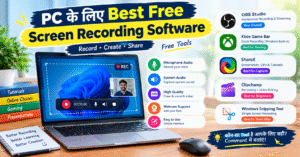
Best Free Screen Recording Software for PC 💻
Want to record your computer screen for tutorials, online classes, gaming, or presentations? The right screen recording software can help you create clear, professional videos without spending money. Many free tools offer useful features such as microphone recording, system audio capture, and high-quality video recording.
In this guide, we’ll explore some of the best free screen recording software for PC, their key features, and how to choose the right tool for your needs.
🎥 1. OBS Studio – Best Overall Screen Recorder
OBS Studio is a powerful, free, open-source screen recording tool. It allows you to record your screen, capture audio, add a webcam, and create professional tutorials or gameplay videos. It is a great choice for content creators who want more control over their recordings.
Best for: Gaming, tutorials, live streaming, and professional recordings.
⚡ 2. Xbox Game Bar – Best for Quick Recording
Xbox Game Bar is a built-in Windows feature that lets you record supported applications without installing additional software. You can quickly start recording with keyboard shortcuts and capture gameplay or app activity.
Best for: Quick recordings and gaming clips.
🖥️ 3. ShareX – Best for Screen Capture and GIFs
ShareX is a free, open-source Windows tool that supports screen recording, screenshots, GIF creation, and image annotations. It is especially useful for technical tutorials, software demonstrations, and step-by-step guides.
Best for: Short tutorials, GIFs, screenshots, and documentation.
✂️ 4. Clipchamp – Best for Recording and Editing
Clipchamp combines screen recording with video editing features. Depending on your setup and available features, you can record your screen and webcam, then edit your video for presentations, educational content, or social media.
Best for: Beginners who want recording and editing in one place.
🎬 5. Windows Snipping Tool – Best for Simple Recordings
On compatible Windows 11 devices, Snipping Tool can record a selected area of your screen. It is convenient when you want to demonstrate a particular application or explain a process without using advanced recording software.
Best for: Short screen demonstrations and basic tutorials.
📊 Quick Comparison of Free Screen Recorders
| Software | Best Use | Beginner-Friendly |
|---|---|---|
| OBS Studio | Professional recording and streaming | Moderate |
| Xbox Game Bar | Quick app and gameplay clips | Yes |
| ShareX | Screenshots, GIFs, and technical demos | Moderate |
| Clipchamp | Recording and video editing | Yes |
| Snipping Tool | Simple screen-area recording | Yes |
💡 How to Choose the Best Screen Recording Software
Before choosing a screen recorder, consider your recording requirements. If you want advanced controls and long recordings without a watermark, OBS Studio is an excellent option. For quick captures, Xbox Game Bar is convenient, while ShareX is useful for screenshots and technical demonstrations.
Also, check whether the software supports microphone audio, system sound, your preferred video quality, and the features you need. Always download software from its official website or a trusted source.
🎯 Final Thoughts
Choosing the best free screen recording software for PC depends on how you plan to use it. Whether you’re recording gaming sessions, creating educational videos, preparing presentations, or making software tutorials, there is a suitable free option available.
Start with a simple tool and explore advanced features as your recording needs grow.
💻 PC के लिए Best Free Screen Recording Software
अगर आप अपने कंप्यूटर की स्क्रीन को रिकॉर्ड करना चाहते हैं, चाहे वह Tutorials, Online Classes, Gaming या Presentations के लिए हो, तो सही Screen Recording Software आपके काम को आसान बना सकता है। कई Free Tools ऐसे हैं जिनकी मदद से आप बिना पैसे खर्च किए अच्छी Quality की Video बना सकते हैं।
इस लेख में हम PC के लिए कुछ बेहतरीन Free Screen Recording Software के बारे में जानेंगे, उनके Features समझेंगे और यह भी जानेंगे कि आपकी ज़रूरत के हिसाब से कौन-सा Tool सही रहेगा।
🎥 1. OBS Studio – सबसे अच्छा Screen Recorder
OBS Studio एक शक्तिशाली और पूरी तरह Free, Open-Source Screen Recording Software है। इसकी मदद से आप कंप्यूटर की स्क्रीन रिकॉर्ड कर सकते हैं, Audio Capture कर सकते हैं और Webcam भी जोड़ सकते हैं।
यह Software उन लोगों के लिए अच्छा है जो Professional Tutorials, Gaming Videos और Live Streaming करना चाहते हैं।
मुख्य उपयोग: Gaming, Tutorials, Live Streaming और Professional Video Recording.
⚡ 2. Xbox Game Bar – जल्दी Screen Recording करने के लिए
Xbox Game Bar Windows में मिलने वाला एक Built-in Feature है। इसकी मदद से आप बिना कोई अतिरिक्त Software Install किए Supported Applications और Games की Recording कर सकते हैं।
Keyboard Shortcut का इस्तेमाल करके Recording जल्दी शुरू की जा सकती है।
मुख्य उपयोग: Gaming Clips और जल्दी Screen Recording करने के लिए।
🖥️ 3. ShareX – Screenshots और GIF बनाने के लिए
ShareX एक Free और Open-Source Windows Tool है। इसका इस्तेमाल Screen Recording, Screenshots, GIF बनाने और Images पर Notes या Annotations जोड़ने के लिए किया जा सकता है।
अगर आप Computer Tutorials, Software Guides या Step-by-Step Instructions बनाते हैं, तो यह Tool आपके लिए उपयोगी हो सकता है।
मुख्य उपयोग: Screenshots, GIFs, छोटे Tutorials और Technical Demonstrations.
✂️ 4. Clipchamp – Recording और Video Editing के लिए
Clipchamp एक उपयोगी Tool है, जिसमें Screen Recording के साथ Video Editing की सुविधाएँ भी मिलती हैं। उपलब्ध Features और आपके Setup के अनुसार आप Screen और Webcam Record करके Video को Edit कर सकते हैं।
यह Beginners के लिए अच्छा विकल्प है, खासकर जब उन्हें एक ही जगह पर Recording और Editing करनी हो।
मुख्य उपयोग: Educational Videos, Presentations और Social Media Content.
🎬 5. Windows Snipping Tool – आसान Screen Recording के लिए
Windows 11 के Compatible Devices पर Snipping Tool की मदद से स्क्रीन के किसी चुने हुए हिस्से की Recording की जा सकती है।
अगर आपको किसी Application का इस्तेमाल समझाना है या किसी Process का छोटा Demonstration बनाना है, तो यह एक आसान विकल्प है।
मुख्य उपयोग: छोटे Screen Demonstrations और Basic Tutorials.
📊 Free Screen Recording Software की तुलना
| Software | किस काम के लिए अच्छा है | Beginners के लिए |
|---|---|---|
| OBS Studio | Professional Recording और Streaming | थोड़ा अभ्यास चाहिए |
| Xbox Game Bar | Gaming और Quick Recording | आसान |
| ShareX | Screenshots, GIFs और Technical Tutorials | थोड़ा अभ्यास चाहिए |
| Clipchamp | Recording और Video Editing | आसान |
| Snipping Tool | स्क्रीन के चुने हुए हिस्से की Recording | बहुत आसान |
💡 अपने PC के लिए सही Screen Recorder कैसे चुनें?
Screen Recording Software चुनने से पहले अपनी ज़रूरतों को समझना ज़रूरी है।
- Gaming Videos: OBS Studio एक अच्छा विकल्प है।
- जल्दी Recording करने के लिए: Xbox Game Bar का इस्तेमाल करें।
- Screenshots और Technical Guides: ShareX उपयोगी है।
- Recording के साथ Editing: Clipchamp आज़मा सकते हैं।
- छोटी Screen Clips: Windows Snipping Tool का उपयोग करें।
Software चुनते समय यह भी जाँचें कि उसमें Microphone Audio, System Sound, Video Quality और आपकी ज़रूरत के दूसरे Features उपलब्ध हैं या नहीं। Software हमेशा उसकी Official Website या किसी भरोसेमंद Source से ही Download करें।
🎯 निष्कर्ष
PC के लिए सबसे अच्छा Free Screen Recording Software आपकी ज़रूरत पर निर्भर करता है। अगर आप Professional Recording करना चाहते हैं, तो OBS Studio एक अच्छा विकल्प है। वहीं, जल्दी Recording के लिए Xbox Game Bar और छोटे Demonstrations के लिए Snipping Tool उपयोगी हो सकते हैं।
इन Free Tools की मदद से आप Online Classes, Computer Tutorials, Gaming Videos और Presentations आसानी से बना सकते हैं।