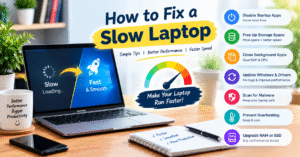
How to Fix a Slow Laptop 💻
Is your laptop running slowly, taking too long to start, or freezing while you work? A slow laptop can affect your productivity and make even simple tasks frustrating. The good news is that you can often improve your laptop’s performance with a few simple changes without buying a new device.
🚀 1. Disable U
Some applications launch automatically when you turn on your laptop, which can increase startup time. Open Task Manager in Windows, go to Startup apps, and disable programs you don’t need to launch automatically.
🧹 2. Free Up Storage Space
A nearly full drive can make it harder to manage files and updates. Remove unnecessary downloads, temporary files, and unused applications. In Windows, you can use Settings → System → Storage to review what’s taking up space.
⚙️ 3. Close Unnecessary Background Apps
Running too many applications simultaneously can consume RAM and CPU resources. Close programs and browser tabs you aren’t using, especially if your laptop has limited memory.
🔄 4. Update Windows and Drivers
Outdated software can sometimes cause performance issues. Check Windows Update for available updates and install compatible driver updates when needed. Restart your laptop after installation if required.
🛡️ 5. Scan for Malware
Malware or unwanted software may use system resources and affect laptop performance. Run a security scan with Windows Security or another trusted antivirus program to identify potential threats.
🌡️ 6. Prevent Overheating
Excessive heat can cause a laptop to reduce its performance. Keep the air vents clear, use your laptop on a hard surface, and clean dust from the cooling system when necessary.
💡 7. Consider a RAM or SSD Upgrade
If your laptop is still slow after basic troubleshooting, its hardware may be limiting performance. Upgrading from an HDD to an SSD can significantly improve startup and loading times. Adding RAM may also help when you regularly run multiple applications, provided your laptop supports the upgrade.
🎯 Final Thoughts
Fixing a slow laptop doesn’t always require expensive repairs. By managing startup apps, freeing up storage, closing unnecessary programs, and keeping your system updated, you can often improve everyday performance.
If the problem continues, check your laptop’s RAM usage, drive health, and temperature to identify the underlying cause.
How to Fix a Slow Laptop 💻
Slow Laptop को Fast कैसे करें?
क्या आपका laptop slow चल रहा है, start होने में ज्यादा time लेता है या काम करते समय बार-बार hang होता है? Slow laptop आपकी productivity को कम कर सकता है और छोटे-छोटे कामों को भी मुश्किल बना देता है। अच्छी बात यह है कि कुछ आसान tips और settings की मदद से आप अपने laptop की performance बेहतर कर सकते हैं।
🚀 1. Disable Unnecessary Startup Apps
जब आप laptop on करते हैं, तो कुछ apps अपने आप start हो जाती हैं, जिससे boot होने में ज्यादा समय लगता है। Windows में Task Manager खोलें, Startup apps पर जाएं और उन apps को disable करें जिनकी जरूरत startup पर नहीं होती।
🧹 2. Free Up Storage Space
अगर आपके laptop की storage लगभग full है, तो performance प्रभावित हो सकती है। Unnecessary files, पुराने downloads और unused applications को delete करें। Windows में Settings → System → Storage पर जाकर देख सकते हैं कि कौन-सी files ज्यादा space ले रही हैं।
⚙️ 3. Close Unnecessary Background Apps
एक साथ बहुत सारी applications और browser tabs चलाने से RAM और CPU का ज्यादा इस्तेमाल होता है। जो apps आप इस्तेमाल नहीं कर रहे हैं, उन्हें बंद कर दें। इससे आपके laptop को जरूरी tasks के लिए ज्यादा resources मिल सकते हैं।
🔄 4. Update Windows and Drivers
पुराने software या drivers कभी-कभी performance issues का कारण बन सकते हैं। Windows Update में जाकर available updates check करें और जरूरत के अनुसार compatible drivers update करें। Update के बाद laptop restart करना भी जरूरी हो सकता है।
🛡️ 5. Scan Your Laptop for Malware
Virus, malware या unwanted software आपके laptop की speed को प्रभावित कर सकते हैं। Windows Security या किसी trusted antivirus की मदद से security scan चलाएं और suspicious programs को check करें।
🌡️ 6. Prevent Laptop Overheating
अगर laptop बहुत ज्यादा गर्म होता है, तो उसकी performance कम हो सकती है। Laptop को hard और flat surface पर रखें, ventilation को साफ रखें और cooling vents में धूल जमा न होने दें। इससे overheating की समस्या कम करने में मदद मिल सकती है।
💡 7. Upgrade RAM or SSD
अगर इन सभी तरीकों के बाद भी laptop slow है, तो hardware upgrade करने पर विचार करें। पुराने HDD की जगह SSD लगाने से laptop की boot speed और application loading time में काफी सुधार हो सकता है। RAM upgrade करने से भी multitasking बेहतर हो सकती है, बशर्ते आपका laptop इसे support करता हो।
🎯 Final Thoughts
Slow laptop को fast बनाने के लिए हमेशा नया laptop खरीदने की जरूरत नहीं होती। Startup apps को manage करना, storage खाली रखना, Windows update करना और overheating से बचना आपकी device की performance बेहतर बनाने में मदद कर सकता है।
अगर आपका laptop फिर भी slow चल रहा है, तो RAM usage, storage drive की health और temperature check करें, ताकि असली समस्या का पता लगाया जा सके।