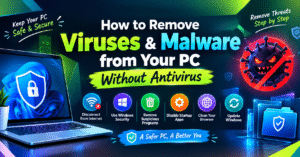
🛡️ How to Remove Viruses & Malware from Your PC Without Antivirus
📌 Introduction
Computer viruses and malware can slow down your PC, damage files, and put your personal information at risk. If you suspect your computer is infected, you can take several steps to identify and remove suspicious software without installing a third-party antivirus.
🔍 1. Disconnect from the Internet
If you notice unusual activity on your computer, disconnect Wi-Fi or unplug the network cable. This can help limit suspicious communication and prevent some malware from spreading or downloading additional files.
⚙️ 2. Use Windows Security
Windows includes built-in security tools that can scan your computer for threats. Open Windows Security → Virus & threat protection → Scan options and run a scan. This is a built-in protection feature, even if you do not install another antivirus program.
🗑️ 3. Uninstall Suspicious Programs
Open Settings → Apps → Installed apps and review unfamiliar programs. Uninstall applications you do not recognize or no longer need, but avoid removing essential Windows components.
🚀 4. Disable Suspicious Startup Apps
Some unwanted programs launch automatically when Windows starts. Open Task Manager → Startup apps and disable unfamiliar or unnecessary entries. Be careful not to disable important system or security software.
🌐 5. Clean Your Browser
Remove suspicious browser extensions, block unwanted notifications, and reset browser settings if necessary. Avoid clicking unknown links or downloading files from untrusted websites.
🔄 6. Update Windows
Install the latest Windows updates and security patches. Updates can fix vulnerabilities and improve your computer’s protection against known threats.
⚠️ Important Safety Tips
- Back up important files carefully, avoiding suspicious executable files.
- Change important passwords from a separate, trusted device if you suspect account theft.
- If malware remains, use Microsoft Defender Offline or seek professional help.
- Never assume that deleting suspicious files removes every infection.
📝 Conclusion
Removing malware without installing a third-party antivirus is possible in some cases by using Windows’ built-in security tools and following safe cleanup steps. However, manual removal is not always reliable. For serious infections, a trusted security scan or professional assistance is the safer option.
🛡️ How to Remove Viruses & Malware from Your PC Without Antivirus
📌 Introduction
Computer में virus और malware आना एक common problem है। इससे आपका PC slow हो सकता है, files damage हो सकती हैं और personal data चोरी होने का खतरा बढ़ सकता है। अगर आपके computer में suspicious activity दिखाई दे रही है, तो आप Windows के built-in security tools की मदद से malware को detect और remove करने की कोशिश कर सकते हैं।
🔍 1. Disconnect from the Internet
अगर आपको लगता है कि आपका PC infected है, तो सबसे पहले Wi-Fi disconnect कर दें। इससे malware की कुछ online activities को रोकने में मदद मिल सकती है। जब तक computer check न हो जाए, तब तक unknown links और files को open न करें।
⚙️ 2. Use Windows Security
Windows में पहले से ही Windows Security का feature मौजूद होता है। इसे open करें और Virus & threat protection में जाकर scan चलाएँ। यह आपके PC में मौजूद कई known threats को detect करने और remove करने में मदद कर सकता है।
🗑️ 3. Remove Suspicious Programs
कई बार unwanted software के कारण computer में problems आती हैं। Settings → Apps → Installed apps में जाएँ और unfamiliar applications को check करें। केवल उन्हीं programs को uninstall करें जिनके बारे में आप reasonably sure हैं कि वे unnecessary या unwanted हैं।
🚀 4. Disable Suspicious Startup Apps
कुछ unwanted programs computer start होते ही automatically run होने लगते हैं। Task Manager open करें, फिर Startup apps में जाकर suspicious या unnecessary apps को disable करें। जरूरी Windows और security components को disable करने से बचें।
🌐 5. Clean Your Web Browser
अगर browser में unwanted ads, pop-ups या strange redirects दिखाई देते हैं, तो suspicious extensions remove करें। Browser की notification settings check करें और जरूरत पड़ने पर browser settings reset करें। इससे unwanted browser activity को कम करने में मदद मिल सकती है।
🔄 6. Update Windows
अपने Windows system को latest updates के साथ updated रखें। Security updates पुराने vulnerabilities को fix करने में मदद करते हैं और computer की protection improve कर सकते हैं।
⚠️ Important Safety Tips
- Unknown files और suspicious email attachments को open न करें।
- Important data का सुरक्षित backup रखें।
- अगर malware बार-बार वापस आता है, तो Microsoft Defender Offline scan का इस्तेमाल करें।
- अगर personal accounts compromised होने का शक है, तो किसी trusted device से passwords change करें।
📝 Conclusion
आप Windows के built-in security features और कुछ manual cleanup steps की मदद से कई malware problems को solve करने की कोशिश कर सकते हैं। हालांकि, हर virus को manually remove करना आसान नहीं होता। अगर infection गंभीर है, तो trusted security software से scan करना या professional help लेना ज्यादा सुरक्षित रहेगा।